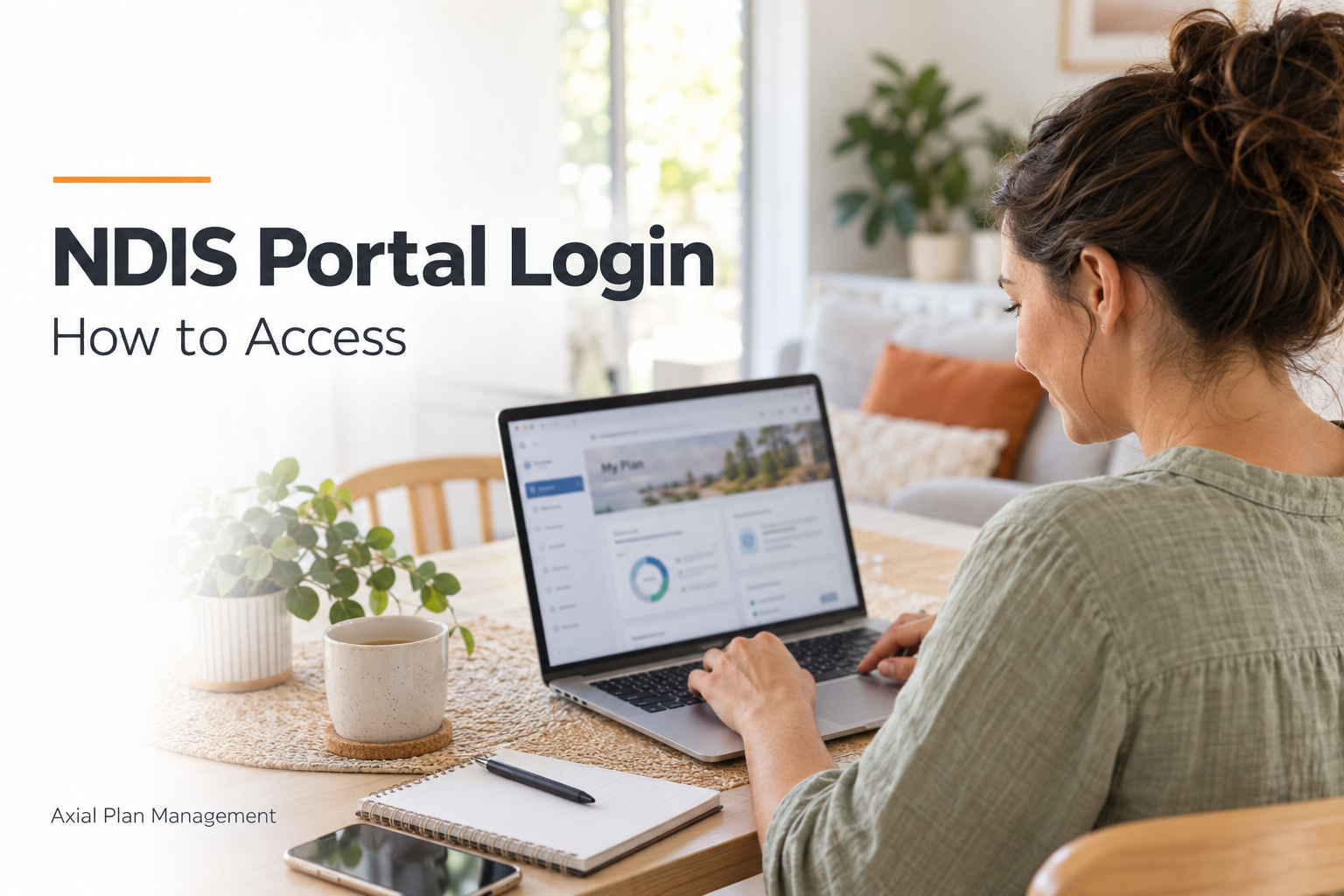
Your NDIS portal login gives you access to your plan information and funding details. To get started, sign in to myGov and select your linked NDIS service.
If this is your first visit, you will need to connect the NDIS to your myGov account. This involves an activation code and a few personal details.
The different portal names can make things confusing. This guide explains which portal to use, how to log in, and what to do when you need help.
Which NDIS Participant Portal Should You Use?
There are two NDIS participant portals: my NDIS and myplace. The portal you use depends on where your current plan is held.
- my NDIS participant portal: For plans created in the newer NDIS computer system.
- myplace participant portal: For plans that remain in the older system.
You may hear the newer computer system called PACE. Participants with plans in this system use my NDIS.
The myplace portal is often called the legacy portal. However, it remains available for participants with relevant plans.
Your NDIA planner can confirm which portal applies to you. Both participant portals are accessed through myGov.
What Do You Need Before Logging In?
Having your information ready can make your first login easier.
Before you begin, gather:
- Your myGov sign-in details.
- Access to your phone for security checks.
- Your NDIS activation code, if linking for the first time.
- Your personal details as recorded by the NDIA.
- Your participant number, in case you need support.
Your participant number identifies your NDIS record. It is different from your myGov username and activation code.
Use a stable internet connection and keep your plan letter nearby.
If you have not joined the scheme, check the NDIS eligibility rules first. A myGov account alone does not give you access to an NDIS plan.
How Do You Link myGov to NDIS?
You need to link myGov to NDIS before accessing either participant portal.
1. Sign In to myGov
Visit the official myGov website and sign in using your existing method.
If you do not have an account, follow the instructions to create one.
2. Request Your Activation Code
Start through the official NDIS participant portal entry point and follow the activation prompts.
The NDIS can send a one-time activation code to your registered mobile number.
If you need help getting the code, call 1800 800 110.
3. Open Linked Services
In myGov, go to My account and select Linked Services.
Choose Link a service, then find the National Disability Insurance Scheme tile.
4. Enter Your Information
Select Link and enter your activation code and requested details.
Check your information before submitting. Then follow the prompts to accept the terms and privacy notice.
Once connected, you can access your NDIS service through myGov.
How Do You Complete Your NDIS Portal Login?
After linking your accounts, you do not need to repeat the setup for every visit.
Follow these steps:
- Open the official myGov website.
- Sign in using your supported method.
- Complete any security check requested.
- Select your linked NDIS service.
- Open the participant portal connected to your current plan.
You can also begin through the Participant portal link on the official NDIS website.
Check the website address before entering your details. Avoid opening login links from unexpected messages.
If you need another walkthrough, our NDIS portal login guide for participants explains the process.
Why Does Two-Factor Authentication Matter?
Two-factor authentication adds a security check when you sign in. It helps protect your personal information and account access.
The check depends on the sign-in method configured in myGov.
The NDIS does not support secret questions and answers as a two-factor authentication option. Update your sign-in settings if you currently use that method.
Keep your password, activation code, and security codes private.
If someone helps you navigate the portal, enter your own login details. Always sign out when using a shared device.
What Should You Check After Logging In?
Start by confirming that you are viewing your current plan.
Review your plan dates, funding information, and approved supports. Your budget view helps you understand the amounts displayed.
Check:
- Your plan’s start and end dates.
- The support categories included.
- The funding amounts shown.
- Any details that need clarification.
Write down questions before contacting the NDIA or your plan manager. This makes the conversation easier.
Understanding your plan budget involves more than reading a balance. Our guide to how NDIS funding works explains the basics.
Consider outstanding invoices and agreed supports before planning further spending. Ask your plan manager about costs already committed.
How Can You Fix a Login Error?
First, identify where the login error happens. A myGov sign-in problem differs from an NDIS linking problem.
What If You Forget Your Password?
Select Forgot password on the myGov sign-in page.
Enter your sign-in details and choose how to receive your recovery code. Follow the prompts to reset your password.
Choose a password you do not use for other accounts.
What If Your Security Code Does Not Arrive?
Check your phone reception and make sure flight mode is off.
Look for blocked messages and restart your phone. Another sign-in method may work if already connected to your account.
What If Your Account Is Locked?
Repeated incorrect attempts can lock your myGov account. Stop guessing and follow the official recovery instructions.
For myGov sign-in help, call 132 307.
What If You Cannot Link the NDIS?
Check your activation code and personal details.
If linking still fails, contact the NDIS on 1800 800 110. Explain the error shown on your screen.
Is the Provider Portal the Same?
No. A provider portal supports provider tasks. The participant portal gives you access to your participant information.
You may see service booking mentioned in older myplace guidance. This reserves funding for supports within the older system.
It is different from booking an appointment.
For relevant NDIA-managed plans in the older system, providers need service bookings before claiming payment. Ask which process applies to your plan.
Can a Nominee Access Your Portal?
An authorised nominee or child representative uses their own myGov account to access relevant participant information.
They should not use the participant’s credentials. The NDIA can help confirm their access arrangements.
If you need help understanding your budget or managing invoices, contact Axial Plan Management. Our team can explain your plan-managed funding and answer your questions.
Conclusion
Your NDIS portal login helps you access your plan details and review your funding. Start by linking your NDIS service to myGov.
Use the participant portal connected to your current plan, and keep your sign-in details secure.
If access fails, contact myGov or the NDIS, depending on where the problem occurs.